> ## Documentation Index
> Fetch the complete documentation index at: https://docs-dev-feat-docs-5417-afc.mintlify.site/llms.txt
> Use this file to discover all available pages before exploring further.

# ユースケース：Formsを使用して追加のサインアップ手順を構成する

> Forms for Actionsを使用して追加のサインアップ手順を構成する方法を説明します。

<Card title="始める前に">
  1. 以下のスコープを有効にして、[マシンツーマシンアプリケーション](https://auth0.com/docs/get-started/auth0-overview/create-applications/machine-to-machine-apps)を作成します。

  * `read:users`
  * `update:users`
  * `create:users`
  * `read:users_app_metadata`
  * `update:users_app_metadata`
  * `create:users_app_metadata`

  2. マシンツーマシンアプリケーションの資格情報を使って[Vault接続](/docs/ja-jp/customize/forms/vault)を追加します。
</Card>

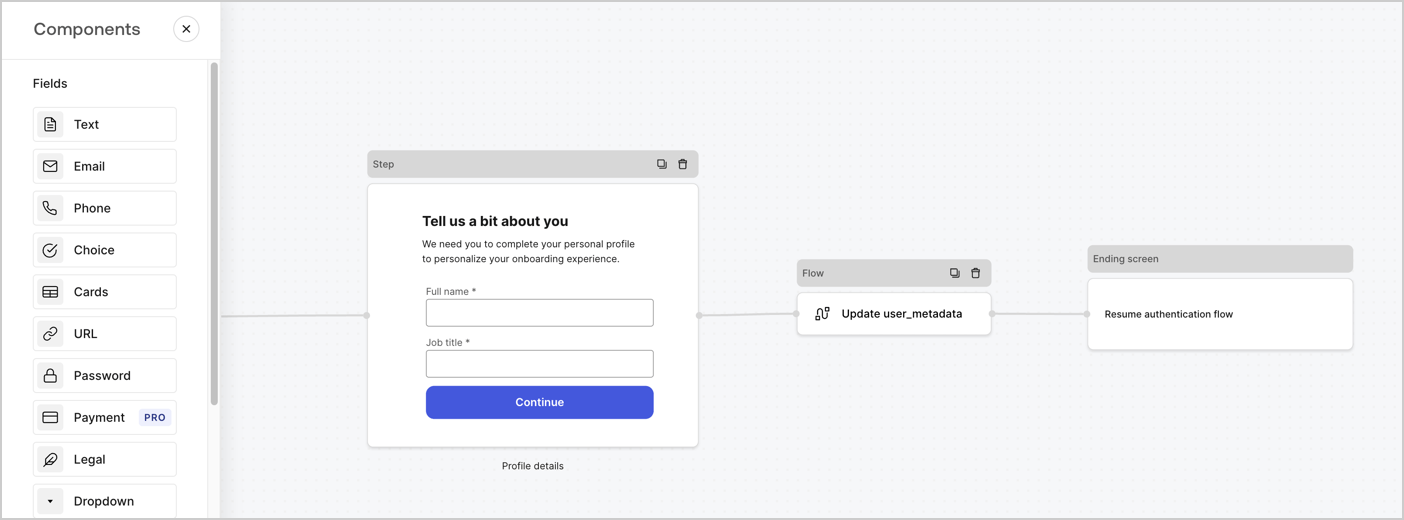
Forms for Actionsを使用すると、サインアップまたはログインフローに追加のステップを作成し、ユーザーがアプリケーションにアクセスできるようにする前にそれらのステップを必須にすることができます。
<Frame>
  <img src="https://mintcdn.com/docs-dev-feat-docs-5417-afc/PF5awkeuXSsX1i4M/docs/images/ja-jp/cdy7uua7fh8z/ZOQNi6SrEC9OREcBbdiJ3/d79f84fb61acd5473bdf932527e26d58/custom-signup-form.png?fit=max&auto=format&n=PF5awkeuXSsX1i4M&q=85&s=31564c8d56c714702729138887d6a5f3" alt="Dashboard > Actions > Forms > Use Case Custom Signup Form" data-og-width="1404" width="1404" data-og-height="520" height="520" data-path="docs/images/ja-jp/cdy7uua7fh8z/ZOQNi6SrEC9OREcBbdiJ3/d79f84fb61acd5473bdf932527e26d58/custom-signup-form.png" data-optimize="true" data-opv="3" srcset="https://mintcdn.com/docs-dev-feat-docs-5417-afc/PF5awkeuXSsX1i4M/docs/images/ja-jp/cdy7uua7fh8z/ZOQNi6SrEC9OREcBbdiJ3/d79f84fb61acd5473bdf932527e26d58/custom-signup-form.png?w=280&fit=max&auto=format&n=PF5awkeuXSsX1i4M&q=85&s=882e93b5f550f5613256686694d53c1d 280w, https://mintcdn.com/docs-dev-feat-docs-5417-afc/PF5awkeuXSsX1i4M/docs/images/ja-jp/cdy7uua7fh8z/ZOQNi6SrEC9OREcBbdiJ3/d79f84fb61acd5473bdf932527e26d58/custom-signup-form.png?w=560&fit=max&auto=format&n=PF5awkeuXSsX1i4M&q=85&s=d136030b3233a2d5c8449e9099a1072b 560w, https://mintcdn.com/docs-dev-feat-docs-5417-afc/PF5awkeuXSsX1i4M/docs/images/ja-jp/cdy7uua7fh8z/ZOQNi6SrEC9OREcBbdiJ3/d79f84fb61acd5473bdf932527e26d58/custom-signup-form.png?w=840&fit=max&auto=format&n=PF5awkeuXSsX1i4M&q=85&s=8cd197e4937ad6ad3cb0b35f410dd064 840w, https://mintcdn.com/docs-dev-feat-docs-5417-afc/PF5awkeuXSsX1i4M/docs/images/ja-jp/cdy7uua7fh8z/ZOQNi6SrEC9OREcBbdiJ3/d79f84fb61acd5473bdf932527e26d58/custom-signup-form.png?w=1100&fit=max&auto=format&n=PF5awkeuXSsX1i4M&q=85&s=2d9efb4b4973567096fc30a07d80f0b3 1100w, https://mintcdn.com/docs-dev-feat-docs-5417-afc/PF5awkeuXSsX1i4M/docs/images/ja-jp/cdy7uua7fh8z/ZOQNi6SrEC9OREcBbdiJ3/d79f84fb61acd5473bdf932527e26d58/custom-signup-form.png?w=1650&fit=max&auto=format&n=PF5awkeuXSsX1i4M&q=85&s=5e7f54f542e34f2b6a3fa01f1519de75 1650w, https://mintcdn.com/docs-dev-feat-docs-5417-afc/PF5awkeuXSsX1i4M/docs/images/ja-jp/cdy7uua7fh8z/ZOQNi6SrEC9OREcBbdiJ3/d79f84fb61acd5473bdf932527e26d58/custom-signup-form.png?w=2500&fit=max&auto=format&n=PF5awkeuXSsX1i4M&q=85&s=d49de948f77972feb74c0cb5a6de9cad 2500w" />
</Frame>

以下のセクションでは、ノードとフローを使用して追加のサインアップステップフォームを作成する方法と、フォームを[ポストログイン](/docs/ja-jp/customize/actions/explore-triggers/signup-and-login-triggers/login-trigger)アクションに追加する手順について説明します。

## フォームをゼロから作成する

情報を収集するためのフォームを作成するには、次の手順に従ってください。

1. **［Auth0 Dashboard］>［Actions（アクション）］>［Forms（フォーム）］** の順に選択して、フォームエディターを開きます。
2. **［Create Form（フォームを作成）］** > **［Start from scratch（初めから作成する）］** の順に選択します。

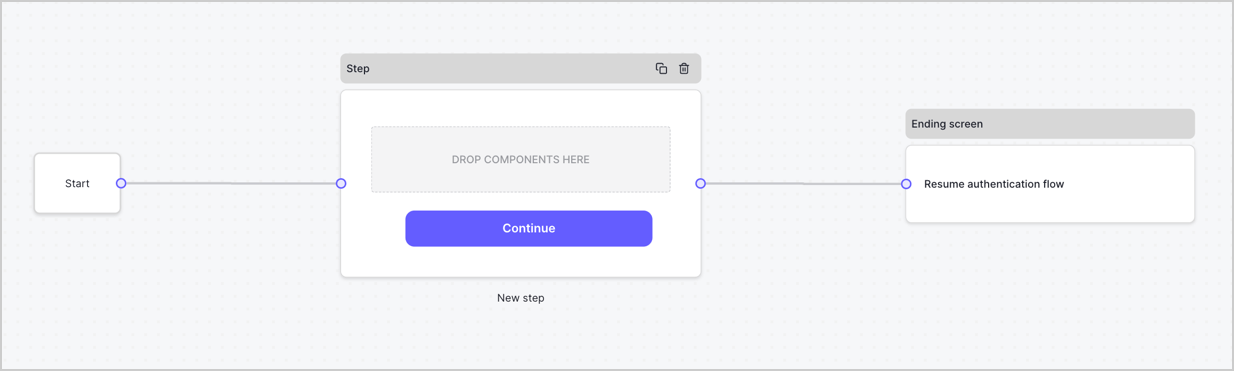
特に設定を変更しない限り、新しいフォームには開始ノード、ステップノード、および終了スクリーンノードが含まれます。
<Frame>
  <img src="https://mintcdn.com/docs-dev-feat-docs-5417-afc/8uGzXUaCfLQLPtqw/docs/images/ja-jp/cdy7uua7fh8z/2TZ9jSjgEcARFpULI6hz4R/a4319a1bd482f2ee5cc23100fdb2f42c/New-form-Forms-for-action-use-case.png?fit=max&auto=format&n=8uGzXUaCfLQLPtqw&q=85&s=ed412b5fd2b2526503d6681ee1edd894" alt="Dashboard > Forms > Use Cases > Form" data-og-width="1234" width="1234" data-og-height="371" height="371" data-path="docs/images/ja-jp/cdy7uua7fh8z/2TZ9jSjgEcARFpULI6hz4R/a4319a1bd482f2ee5cc23100fdb2f42c/New-form-Forms-for-action-use-case.png" data-optimize="true" data-opv="3" srcset="https://mintcdn.com/docs-dev-feat-docs-5417-afc/8uGzXUaCfLQLPtqw/docs/images/ja-jp/cdy7uua7fh8z/2TZ9jSjgEcARFpULI6hz4R/a4319a1bd482f2ee5cc23100fdb2f42c/New-form-Forms-for-action-use-case.png?w=280&fit=max&auto=format&n=8uGzXUaCfLQLPtqw&q=85&s=649f077777c90583674fb5ca94144bf7 280w, https://mintcdn.com/docs-dev-feat-docs-5417-afc/8uGzXUaCfLQLPtqw/docs/images/ja-jp/cdy7uua7fh8z/2TZ9jSjgEcARFpULI6hz4R/a4319a1bd482f2ee5cc23100fdb2f42c/New-form-Forms-for-action-use-case.png?w=560&fit=max&auto=format&n=8uGzXUaCfLQLPtqw&q=85&s=25dcf1647c3dbc6b9632dd67db34a8b8 560w, https://mintcdn.com/docs-dev-feat-docs-5417-afc/8uGzXUaCfLQLPtqw/docs/images/ja-jp/cdy7uua7fh8z/2TZ9jSjgEcARFpULI6hz4R/a4319a1bd482f2ee5cc23100fdb2f42c/New-form-Forms-for-action-use-case.png?w=840&fit=max&auto=format&n=8uGzXUaCfLQLPtqw&q=85&s=3a3547cfb25f210ae45e4bfad03a5aa1 840w, https://mintcdn.com/docs-dev-feat-docs-5417-afc/8uGzXUaCfLQLPtqw/docs/images/ja-jp/cdy7uua7fh8z/2TZ9jSjgEcARFpULI6hz4R/a4319a1bd482f2ee5cc23100fdb2f42c/New-form-Forms-for-action-use-case.png?w=1100&fit=max&auto=format&n=8uGzXUaCfLQLPtqw&q=85&s=cdc850996d2ab61dc84d46cfb080e9d6 1100w, https://mintcdn.com/docs-dev-feat-docs-5417-afc/8uGzXUaCfLQLPtqw/docs/images/ja-jp/cdy7uua7fh8z/2TZ9jSjgEcARFpULI6hz4R/a4319a1bd482f2ee5cc23100fdb2f42c/New-form-Forms-for-action-use-case.png?w=1650&fit=max&auto=format&n=8uGzXUaCfLQLPtqw&q=85&s=462e3a68e8a7016a808ba3c0699acd0e 1650w, https://mintcdn.com/docs-dev-feat-docs-5417-afc/8uGzXUaCfLQLPtqw/docs/images/ja-jp/cdy7uua7fh8z/2TZ9jSjgEcARFpULI6hz4R/a4319a1bd482f2ee5cc23100fdb2f42c/New-form-Forms-for-action-use-case.png?w=2500&fit=max&auto=format&n=8uGzXUaCfLQLPtqw&q=85&s=da56714a3e399abd0af3a559209fe13b 2500w" />
</Frame>

### ステップノードを構成する

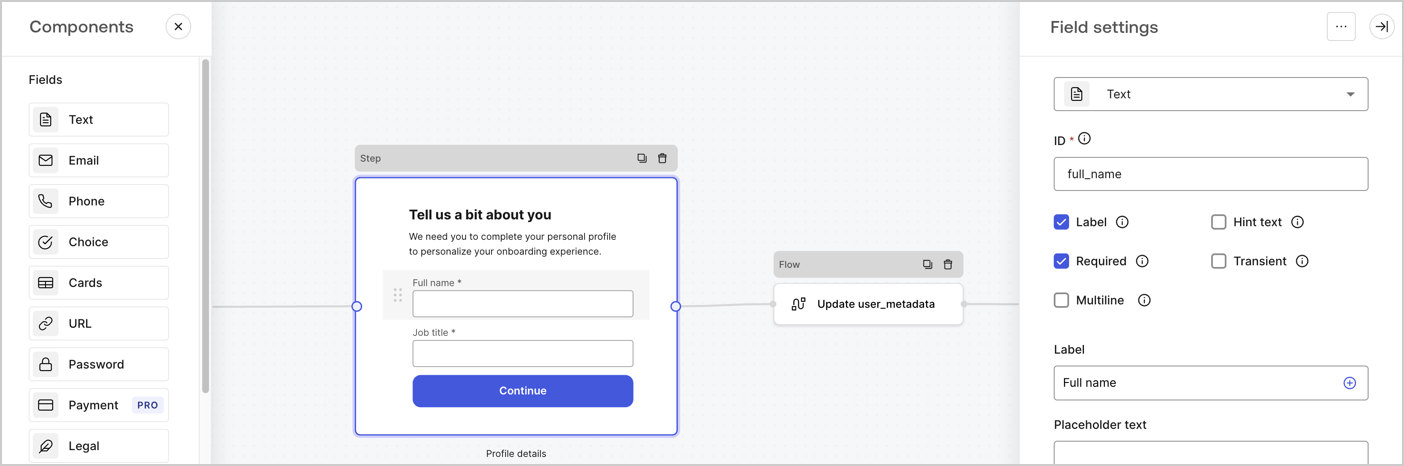
ステップノードは、ユーザーに表示されるグラフィカルインターフェースです。次の手順に従って、ステップノードに[フィールド](/docs/ja-jp/customize/forms/nodes-and-components)を追加し、ユーザーのフルネームと役職の値を収集します。

1. **［Components menu（コンポーネントメニュー）］** から **［Rich text（リッチテキスト）］** フィールドを **［Step（ステップ）］** ノードにドラッグします。

   * **［Rich text（リッチテキスト）］** ：カスタムメッセージを入力します。。
   * **［Save（保存）］** を選択します。
2. **［Text（テキスト）］** フィールドを **［Step（ステップ）］** ノードにドラッグします。

   * **Id** ：`full_name`を入力します。
   * **［Label（ラベル）］** ：`フルネーム`を入力します。
   * **［Label（ラベル）］** ：チェックボックスを有効にします。
   * **［Required（必要）］** ：チェックボックスを有効にします。
   * **［Save（保存）］** を選択します。
3. **［Text（テキスト）］** フィールドを **［Step（ステップ）］** ノードにドラッグします。

   * **Id** ：`job_title`を入力します。
   * **［Label（ラベル）］** ：`役職`を入力します。
   * **［Label（ラベル）］** ：チェックボックスを有効にします。
   * **［Required（必要）］** ：チェックボックスを有効にします。
   * **［Save（保存）］** を選択します。
4. **［Publish（公開）］** を選択し、保存します。

<Frame>
  <img src="https://mintcdn.com/docs-dev-feat-docs-5417-afc/WSHMcSmz8k1fu45i/docs/images/ja-jp/cdy7uua7fh8z/6Kcn0ai9fsVsqHwZpTGByG/37cbf4ffee63a7010926b15f06dd20ac/custom-signup-step-node.png?fit=max&auto=format&n=WSHMcSmz8k1fu45i&q=85&s=99dadc48bea6adc1bbc30ea257e80de4" alt="Dashboard > Actions > Forms > Use Case Custom Signup Steps Step node" data-og-width="1404" width="1404" data-og-height="466" height="466" data-path="docs/images/ja-jp/cdy7uua7fh8z/6Kcn0ai9fsVsqHwZpTGByG/37cbf4ffee63a7010926b15f06dd20ac/custom-signup-step-node.png" data-optimize="true" data-opv="3" srcset="https://mintcdn.com/docs-dev-feat-docs-5417-afc/WSHMcSmz8k1fu45i/docs/images/ja-jp/cdy7uua7fh8z/6Kcn0ai9fsVsqHwZpTGByG/37cbf4ffee63a7010926b15f06dd20ac/custom-signup-step-node.png?w=280&fit=max&auto=format&n=WSHMcSmz8k1fu45i&q=85&s=d82522b9bcca633ad60c6c0177f05a1f 280w, https://mintcdn.com/docs-dev-feat-docs-5417-afc/WSHMcSmz8k1fu45i/docs/images/ja-jp/cdy7uua7fh8z/6Kcn0ai9fsVsqHwZpTGByG/37cbf4ffee63a7010926b15f06dd20ac/custom-signup-step-node.png?w=560&fit=max&auto=format&n=WSHMcSmz8k1fu45i&q=85&s=60b59912ecdd8064513f8df964e57662 560w, https://mintcdn.com/docs-dev-feat-docs-5417-afc/WSHMcSmz8k1fu45i/docs/images/ja-jp/cdy7uua7fh8z/6Kcn0ai9fsVsqHwZpTGByG/37cbf4ffee63a7010926b15f06dd20ac/custom-signup-step-node.png?w=840&fit=max&auto=format&n=WSHMcSmz8k1fu45i&q=85&s=2913d13e5dd4b601853e67111b1b14d0 840w, https://mintcdn.com/docs-dev-feat-docs-5417-afc/WSHMcSmz8k1fu45i/docs/images/ja-jp/cdy7uua7fh8z/6Kcn0ai9fsVsqHwZpTGByG/37cbf4ffee63a7010926b15f06dd20ac/custom-signup-step-node.png?w=1100&fit=max&auto=format&n=WSHMcSmz8k1fu45i&q=85&s=64938376f73f15d21372361b8cbaba4d 1100w, https://mintcdn.com/docs-dev-feat-docs-5417-afc/WSHMcSmz8k1fu45i/docs/images/ja-jp/cdy7uua7fh8z/6Kcn0ai9fsVsqHwZpTGByG/37cbf4ffee63a7010926b15f06dd20ac/custom-signup-step-node.png?w=1650&fit=max&auto=format&n=WSHMcSmz8k1fu45i&q=85&s=ade808877aa76cde729cfd77bf47add7 1650w, https://mintcdn.com/docs-dev-feat-docs-5417-afc/WSHMcSmz8k1fu45i/docs/images/ja-jp/cdy7uua7fh8z/6Kcn0ai9fsVsqHwZpTGByG/37cbf4ffee63a7010926b15f06dd20ac/custom-signup-step-node.png?w=2500&fit=max&auto=format&n=WSHMcSmz8k1fu45i&q=85&s=ff492f3cc7208675bc26a843b5abde8c 2500w" />
</Frame>

### フローノードの構成

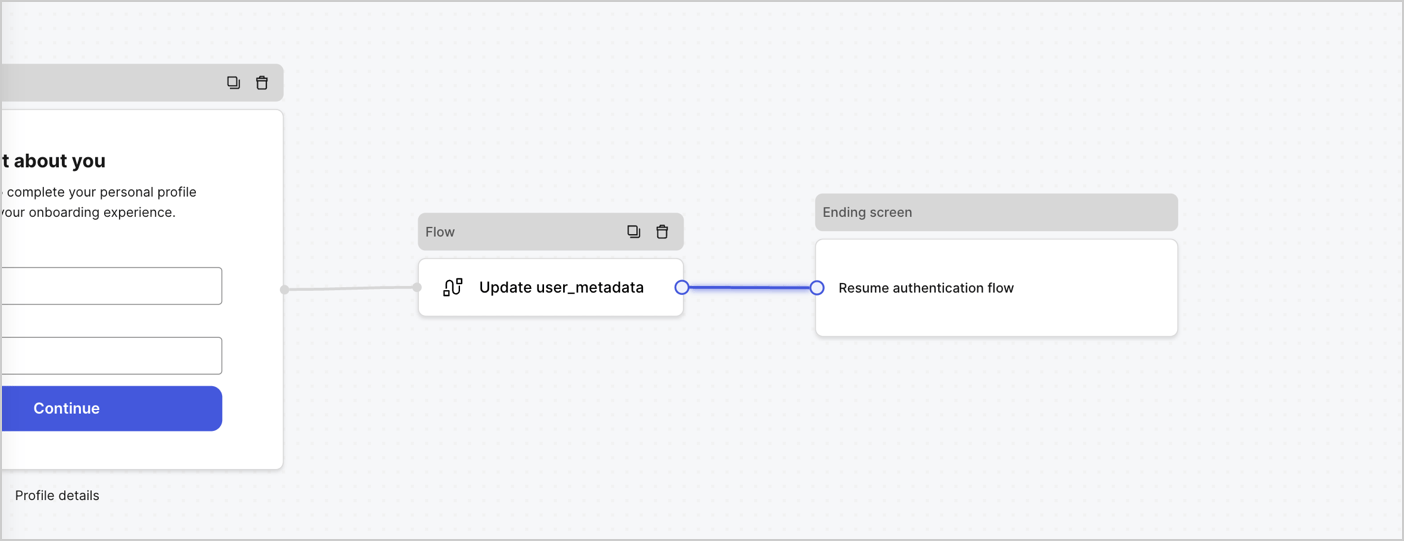
次の手順に従って、 **［Step（ステップ）］** ノードの後に​​ **［Flow（フロー）］** ノードを追加し、`user_metadata`を更新して認証フローを再開します。

1. フォームエディターの下にある **［Flow（フロー）］** を選択します。
2. **［Step（ステップ）］** と **［Ending Screen（終了スクリーン）］** ノードの間にある既存のリンクを削除します。
3. 新しい **［Flow（フロー）］** > **［Click to add a flow（クリックして、フローを追加する）］** > **［Create a new flow（新しいフローを作成する）］** を選択します。

   * **［Name（名前）］** フィールドに`Update user_metadata`を入力します。
   * **［Create（作成）］** を選択します。
   * **［Save（保存）］** を選択します。
4. 下の画像のように **［Step（ステップ）］** と **［Ending Screen（終了スクリーン）** ノードに **［Flow（フロー）］** ノードをリンクします。
5. **［Publish（公開）］** を選択し、保存します。

<Frame>
  <img src="https://mintcdn.com/docs-dev-feat-docs-5417-afc/xkFYZh7pJYa130yL/docs/images/ja-jp/cdy7uua7fh8z/4nTdYdA2Hu5vK65smkdvJg/db3294ebc25a7c2636be96362a3ea56e/custom-signup-step-flow.png?fit=max&auto=format&n=xkFYZh7pJYa130yL&q=85&s=9bbc1a5eee22ebd4388cfdc35056ff76" alt="Dashboard > Actions > Forms > Use Case Custom Signup Step Update User metadata flow" data-og-width="1404" width="1404" data-og-height="541" height="541" data-path="docs/images/ja-jp/cdy7uua7fh8z/4nTdYdA2Hu5vK65smkdvJg/db3294ebc25a7c2636be96362a3ea56e/custom-signup-step-flow.png" data-optimize="true" data-opv="3" srcset="https://mintcdn.com/docs-dev-feat-docs-5417-afc/xkFYZh7pJYa130yL/docs/images/ja-jp/cdy7uua7fh8z/4nTdYdA2Hu5vK65smkdvJg/db3294ebc25a7c2636be96362a3ea56e/custom-signup-step-flow.png?w=280&fit=max&auto=format&n=xkFYZh7pJYa130yL&q=85&s=a78d288b9c592d334714e04a1de76cca 280w, https://mintcdn.com/docs-dev-feat-docs-5417-afc/xkFYZh7pJYa130yL/docs/images/ja-jp/cdy7uua7fh8z/4nTdYdA2Hu5vK65smkdvJg/db3294ebc25a7c2636be96362a3ea56e/custom-signup-step-flow.png?w=560&fit=max&auto=format&n=xkFYZh7pJYa130yL&q=85&s=1fd4d42fdaf20f36a8fa8c3a265fb1c0 560w, https://mintcdn.com/docs-dev-feat-docs-5417-afc/xkFYZh7pJYa130yL/docs/images/ja-jp/cdy7uua7fh8z/4nTdYdA2Hu5vK65smkdvJg/db3294ebc25a7c2636be96362a3ea56e/custom-signup-step-flow.png?w=840&fit=max&auto=format&n=xkFYZh7pJYa130yL&q=85&s=2aef421c1b436c26d5776cde3c84cad7 840w, https://mintcdn.com/docs-dev-feat-docs-5417-afc/xkFYZh7pJYa130yL/docs/images/ja-jp/cdy7uua7fh8z/4nTdYdA2Hu5vK65smkdvJg/db3294ebc25a7c2636be96362a3ea56e/custom-signup-step-flow.png?w=1100&fit=max&auto=format&n=xkFYZh7pJYa130yL&q=85&s=5cff0937fcd7a19f3911b14235fe30cd 1100w, https://mintcdn.com/docs-dev-feat-docs-5417-afc/xkFYZh7pJYa130yL/docs/images/ja-jp/cdy7uua7fh8z/4nTdYdA2Hu5vK65smkdvJg/db3294ebc25a7c2636be96362a3ea56e/custom-signup-step-flow.png?w=1650&fit=max&auto=format&n=xkFYZh7pJYa130yL&q=85&s=3942d9e5eb983db1b39c214efe14476b 1650w, https://mintcdn.com/docs-dev-feat-docs-5417-afc/xkFYZh7pJYa130yL/docs/images/ja-jp/cdy7uua7fh8z/4nTdYdA2Hu5vK65smkdvJg/db3294ebc25a7c2636be96362a3ea56e/custom-signup-step-flow.png?w=2500&fit=max&auto=format&n=xkFYZh7pJYa130yL&q=85&s=55b098628447153c2b315e543d0f88a6 2500w" />
</Frame>

Auth0ユーザーの更新アクションをフローに追加するには、次の手順に従います。

1. **［Flow（フロー）］** の **［Update user\_metadata（user\_metadataの更新）］** > **［Edit flow（フローの編集）］** を選択し、新しいタブでフローエディターを開きます。
2. アクションの開始の下にある **［+］** アイコンを選択し、 **Update user（ユーザーの更新）** アクションを追加します。以下のフィールドに記入して、 **［Save（保存）］** を選択し、続けてください。

   * **Connection（接続）** ：ドロップダウンからM2MアプリケーションへのVault接続を選択します。

   * **User ID（ユーザーID）** ：`{{context.user.user_id}}`と入力します。

   * **［Body（ボディ）］** ：次のコードをコピーして貼り付け、`full_name`および`job_title`プロパティを使用してuser\_metadataを更新します。

     ```json lines theme={null}
     {
       "user_metadata": {
         "full_name": "{{fields.full_name}}",
         "job_title": "{{fields.job_title}}"
       }
     }
     ```

   * **［Save（保存）］** を選択します。
3. ［Publish（公開）］を選択し、保存します。

## フォームレンダーコードを取得する

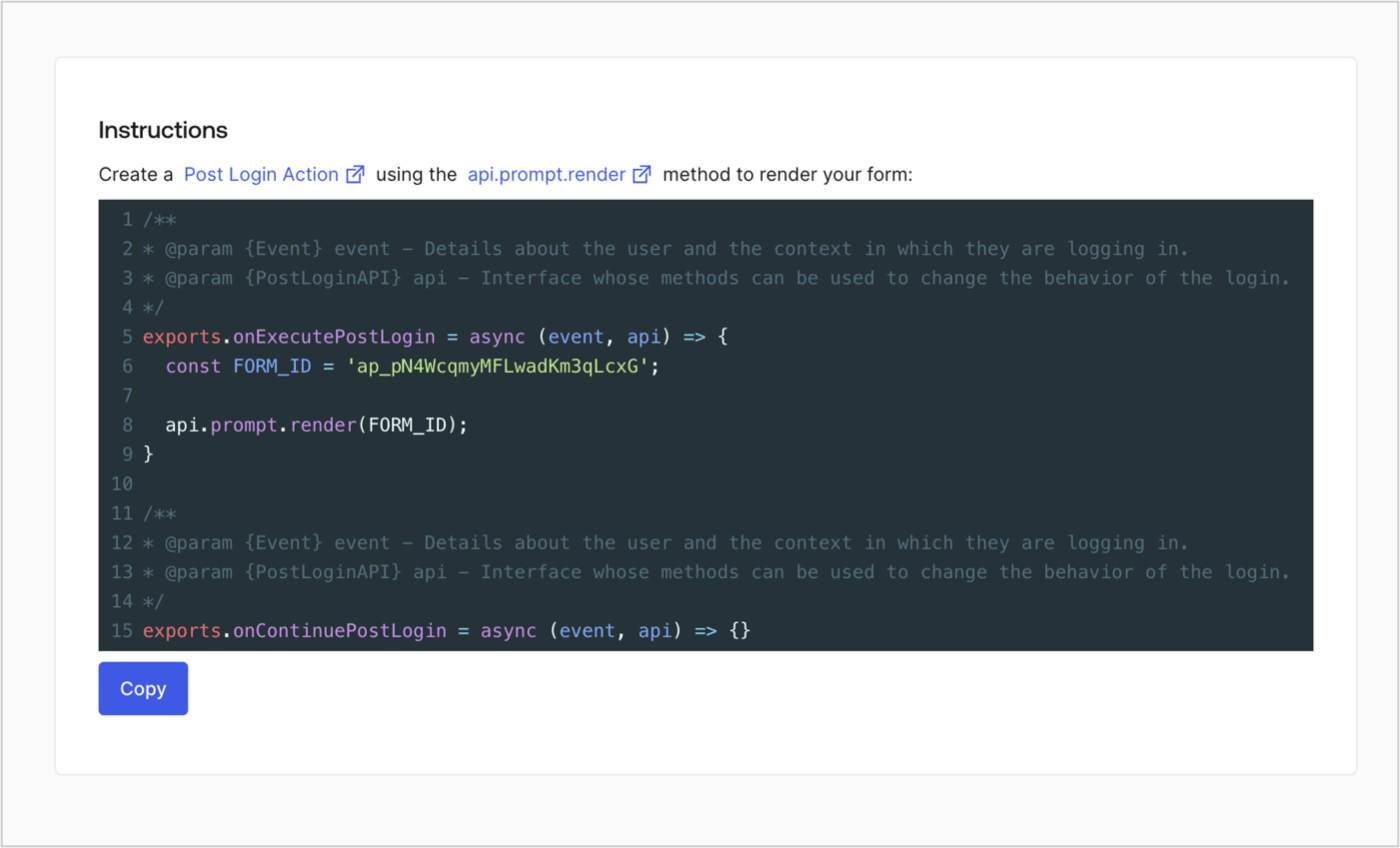
次の手順に従って、フォームレンダーコードを取得して、カスタムのログイン後アクションを使ったフォームを視覚的にレンダリングします。

* Formディターから **`<>`［Render（レンダー）］** を選択します。
* **［Copy（コピー）］** を選択します。

<Frame>
  <img src="https://mintcdn.com/docs-dev-feat-docs-5417-afc/8uGzXUaCfLQLPtqw/docs/images/ja-jp/cdy7uua7fh8z/2EIUzc539sq9lwoTKbjoJv/496a864c0fc44a782c9cadca119dbfb0/embed.png?fit=max&auto=format&n=8uGzXUaCfLQLPtqw&q=85&s=2b7de2166dd2b5613dc3afd72155fc41" alt="Dashboard > Actions > Forms > Form > Embed" data-og-width="1400" width="1400" data-og-height="848" height="848" data-path="docs/images/ja-jp/cdy7uua7fh8z/2EIUzc539sq9lwoTKbjoJv/496a864c0fc44a782c9cadca119dbfb0/embed.png" data-optimize="true" data-opv="3" srcset="https://mintcdn.com/docs-dev-feat-docs-5417-afc/8uGzXUaCfLQLPtqw/docs/images/ja-jp/cdy7uua7fh8z/2EIUzc539sq9lwoTKbjoJv/496a864c0fc44a782c9cadca119dbfb0/embed.png?w=280&fit=max&auto=format&n=8uGzXUaCfLQLPtqw&q=85&s=c8d154cb11ea9ff6e4f16b9d1a194b18 280w, https://mintcdn.com/docs-dev-feat-docs-5417-afc/8uGzXUaCfLQLPtqw/docs/images/ja-jp/cdy7uua7fh8z/2EIUzc539sq9lwoTKbjoJv/496a864c0fc44a782c9cadca119dbfb0/embed.png?w=560&fit=max&auto=format&n=8uGzXUaCfLQLPtqw&q=85&s=54729d4a8c54c0348f547593f78761ff 560w, https://mintcdn.com/docs-dev-feat-docs-5417-afc/8uGzXUaCfLQLPtqw/docs/images/ja-jp/cdy7uua7fh8z/2EIUzc539sq9lwoTKbjoJv/496a864c0fc44a782c9cadca119dbfb0/embed.png?w=840&fit=max&auto=format&n=8uGzXUaCfLQLPtqw&q=85&s=4b61c6f2f8014246c428c292a9ac25a8 840w, https://mintcdn.com/docs-dev-feat-docs-5417-afc/8uGzXUaCfLQLPtqw/docs/images/ja-jp/cdy7uua7fh8z/2EIUzc539sq9lwoTKbjoJv/496a864c0fc44a782c9cadca119dbfb0/embed.png?w=1100&fit=max&auto=format&n=8uGzXUaCfLQLPtqw&q=85&s=b8f32e5868a7e3954ef790fc127153eb 1100w, https://mintcdn.com/docs-dev-feat-docs-5417-afc/8uGzXUaCfLQLPtqw/docs/images/ja-jp/cdy7uua7fh8z/2EIUzc539sq9lwoTKbjoJv/496a864c0fc44a782c9cadca119dbfb0/embed.png?w=1650&fit=max&auto=format&n=8uGzXUaCfLQLPtqw&q=85&s=8b38e6097e269c99c79a044d92c80c2d 1650w, https://mintcdn.com/docs-dev-feat-docs-5417-afc/8uGzXUaCfLQLPtqw/docs/images/ja-jp/cdy7uua7fh8z/2EIUzc539sq9lwoTKbjoJv/496a864c0fc44a782c9cadca119dbfb0/embed.png?w=2500&fit=max&auto=format&n=8uGzXUaCfLQLPtqw&q=85&s=40abb53412563c48b67c06d6487a9412 2500w" />
</Frame>

## ポストログインアクションの作成

ポストログインアクションを作成してフォームをレンダリングするには、次の手順に従います。

1. **［Auth0 Dashboard（Auth0ダッシュボード）］>［Actions（アクション）］>［Flows（フロー）］>［Login（ログイン）］** に移動します。
2. **+** アイコンを選択し、 **［Build from scratch（初めから構築する）］** を選択します。

   * **［Name（名前）］** ：`［Render Additional Signup Form（追加サインアップフォームのレンダリング）］`を入力します。
   * **［Trigger（トリガー）］** ：`［Login / Post Login（ログイン/ログイン後）］`を選択します。
   * **［Runtime（ランタイム）］** ：推奨バージョンを選択します。
3. **［Create（作成）］** を選択します。

ログイン後アクションを構成するには：

1. 既存のコードをコードエディターから削除します。

2. フォームレンダリングコードをコードエディターにペーストします。

3. コードを編集して、フォームをレンダリングする条件ロジックを定義します。

   ```javascript lines theme={null}
   /**
   * @param {Event} event - Details about the user and the context in which they are logging in.
   * @param {PostLoginAPI} api - Interface whose methods can be used to change the behavior of the login.
   */
   exports.onExecutePostLogin = async (event, api) => {
     const FORM_ID = 'REPLACE_WITH_YOUR_FORM_ID';

     if (
       !event.user.user_metadata.full_name &&
       !event.user.user_metadata.job_title
     ) {
       api.prompt.render(FORM_ID);
     }
   }

   exports.onContinuePostLogin = async (event, api) => { }
   ```

   <Callout icon="file-lines" color="#0EA5E9" iconType="regular">
     上の例にあるコードでは、ユーザーのメタデータにfull\_nameプロパティとjob\_titleプロパティがない場合にフォームが表示されます。
   </Callout>

4. **［Deploy（導入）］** を選択します。

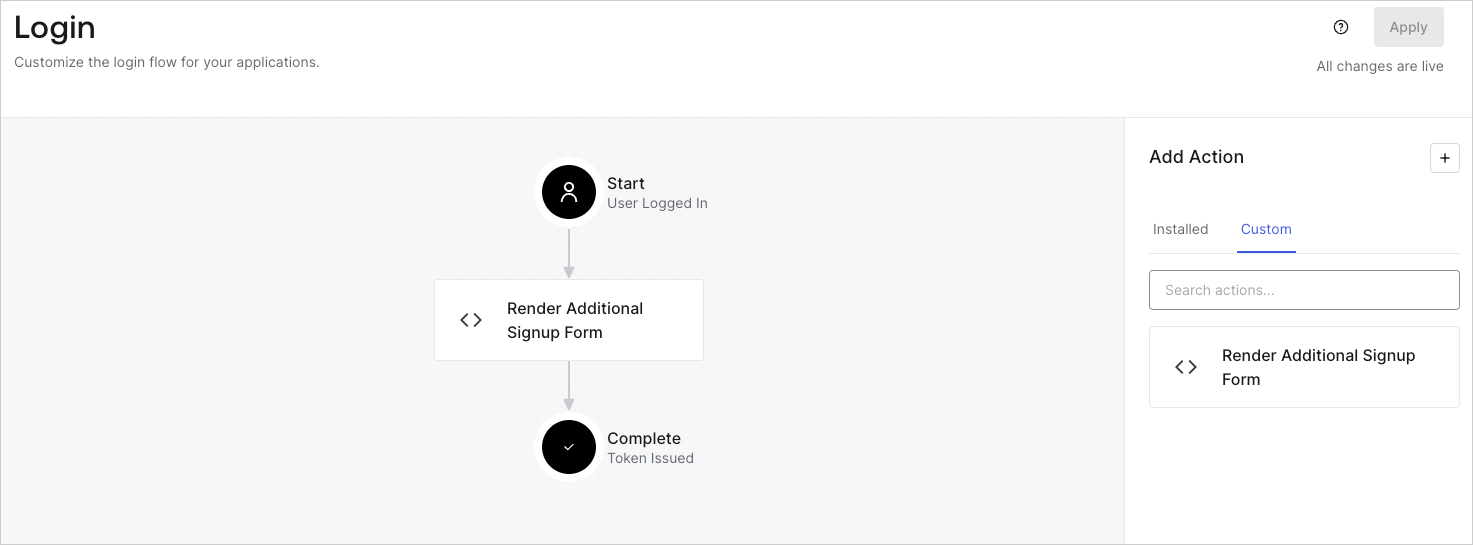
5. **［Render Additional Signup Form（追加サインアップフォームのレンダリング）］** アクションを **［Login（ログイン）］** フローにドラッグ＆ドロップします。

   <Frame>
     <img src="https://mintcdn.com/docs-dev-feat-docs-5417-afc/d5opbKDYdj8AX14A/docs/images/ja-jp/cdy7uua7fh8z/1WBOicIOcH98hKj6Lq9HF2/4951e30a0cc08c7c5daa0116eaa17e11/Screenshot_2024-03-01_at_15.48.00.png?fit=max&auto=format&n=d5opbKDYdj8AX14A&q=85&s=c2f60122f6601bcc5fe5796161dec253" alt="Dashboard > Forms > Use Cases Custom Signup Steps Login Flow" data-og-width="1473" width="1473" data-og-height="545" height="545" data-path="docs/images/ja-jp/cdy7uua7fh8z/1WBOicIOcH98hKj6Lq9HF2/4951e30a0cc08c7c5daa0116eaa17e11/Screenshot_2024-03-01_at_15.48.00.png" data-optimize="true" data-opv="3" srcset="https://mintcdn.com/docs-dev-feat-docs-5417-afc/d5opbKDYdj8AX14A/docs/images/ja-jp/cdy7uua7fh8z/1WBOicIOcH98hKj6Lq9HF2/4951e30a0cc08c7c5daa0116eaa17e11/Screenshot_2024-03-01_at_15.48.00.png?w=280&fit=max&auto=format&n=d5opbKDYdj8AX14A&q=85&s=003dd3469a549f91a1fb6413b9aad474 280w, https://mintcdn.com/docs-dev-feat-docs-5417-afc/d5opbKDYdj8AX14A/docs/images/ja-jp/cdy7uua7fh8z/1WBOicIOcH98hKj6Lq9HF2/4951e30a0cc08c7c5daa0116eaa17e11/Screenshot_2024-03-01_at_15.48.00.png?w=560&fit=max&auto=format&n=d5opbKDYdj8AX14A&q=85&s=c22f805ff0abf1b48b1fdfae305aba8f 560w, https://mintcdn.com/docs-dev-feat-docs-5417-afc/d5opbKDYdj8AX14A/docs/images/ja-jp/cdy7uua7fh8z/1WBOicIOcH98hKj6Lq9HF2/4951e30a0cc08c7c5daa0116eaa17e11/Screenshot_2024-03-01_at_15.48.00.png?w=840&fit=max&auto=format&n=d5opbKDYdj8AX14A&q=85&s=a0ca4cecac3de6251bd2a1fdae1db0fd 840w, https://mintcdn.com/docs-dev-feat-docs-5417-afc/d5opbKDYdj8AX14A/docs/images/ja-jp/cdy7uua7fh8z/1WBOicIOcH98hKj6Lq9HF2/4951e30a0cc08c7c5daa0116eaa17e11/Screenshot_2024-03-01_at_15.48.00.png?w=1100&fit=max&auto=format&n=d5opbKDYdj8AX14A&q=85&s=78c9035a560821938230510367cfc69a 1100w, https://mintcdn.com/docs-dev-feat-docs-5417-afc/d5opbKDYdj8AX14A/docs/images/ja-jp/cdy7uua7fh8z/1WBOicIOcH98hKj6Lq9HF2/4951e30a0cc08c7c5daa0116eaa17e11/Screenshot_2024-03-01_at_15.48.00.png?w=1650&fit=max&auto=format&n=d5opbKDYdj8AX14A&q=85&s=0b66e9d15e4d59f17f1dd0d07f30d5d5 1650w, https://mintcdn.com/docs-dev-feat-docs-5417-afc/d5opbKDYdj8AX14A/docs/images/ja-jp/cdy7uua7fh8z/1WBOicIOcH98hKj6Lq9HF2/4951e30a0cc08c7c5daa0116eaa17e11/Screenshot_2024-03-01_at_15.48.00.png?w=2500&fit=max&auto=format&n=d5opbKDYdj8AX14A&q=85&s=755d09030dd720c9abc30f1fd7ccbf43 2500w" />
   </Frame>

6. **［Apply（適用）］** を選択します。

### 実装のテスト

次の手順に従って実装をテストします。

* 新規ユーザーでアプリケーションにサインアップします。
* ログインフローのログイン後アクションでは、フォームがレンダリングされ、情報の入力が求められます。
* **［<Tooltip data-tooltip-id="react-containers-DefinitionTooltip-0" href="/docs/ja-jp/glossary?term=auth0-dashboard" tip="Auth0 Dashboard: サービスを構成するためのAuth0の主製品。" cta="用語集の表示">Auth0 Dashboard</Tooltip>（Auth0ダッシュボード）］>［User Management（ユーザー管理）］>［Users（ユーザー）］** を選択し、新しいユーザーを見つけ、その属性`full_name`および`job_title`が追加サインアップステップからの情報を含んでいることを検証します。